Contexts
Before this page
Assumes you have read The words you need first — the eight minutes that make the rest of this readable.
The Contexts tab is where you group the people, accounts, resources, and systems in your data into named, hierarchical trees — then use those groupings to slice the Matrix. It replaces the old Org Chart tab and the Risk-Scoring Clusters page: manager hierarchies and resource clusters are now just two of the trees you can build here.
Where the architecture lives
This page is the task-oriented guide. For the data model and plugin framework, see Context Redesign and Context Redesign — UI.
What a Context is
A context is a named group of entities. Contexts nest into trees (a root with children), and every context is one of three variants depending on where it came from:
| Variant | Comes from | Can you edit it? |
|---|---|---|
| Synced 🔵 | A crawler (Entra, CSV, …) ingests the tree — e.g. an HR org hierarchy | No — it is overwritten on the next crawl. You can graft manual children under it. |
| Generated 🟢 | A plugin algorithm you run against existing data — e.g. a manager hierarchy or a resource cluster | The generated nodes are read-only, but your manual children and hand-moved members survive re-runs (see Sync). |
| Manual 🟤 | You build it by hand in the UI | Yes — fully editable. |
Every tree also has exactly one target type — the kind of thing it groups. This is what lets a context filter know whether to narrow the Matrix's rows or its columns:
| Target type | Groups | Example |
|---|---|---|
| Identity | Real persons | An org unit, a project team |
| Principal | Accounts | Service principals owned by one team, orphaned accounts |
| Resource | Permission-granting resources | All groups for one application, a SharePoint cluster |
| System | Source systems | "All SAP-adjacent systems" |
A single tree keeps one target type all the way down, but it can mix variants — for example a manual sub-team grafted under a synced HR node.
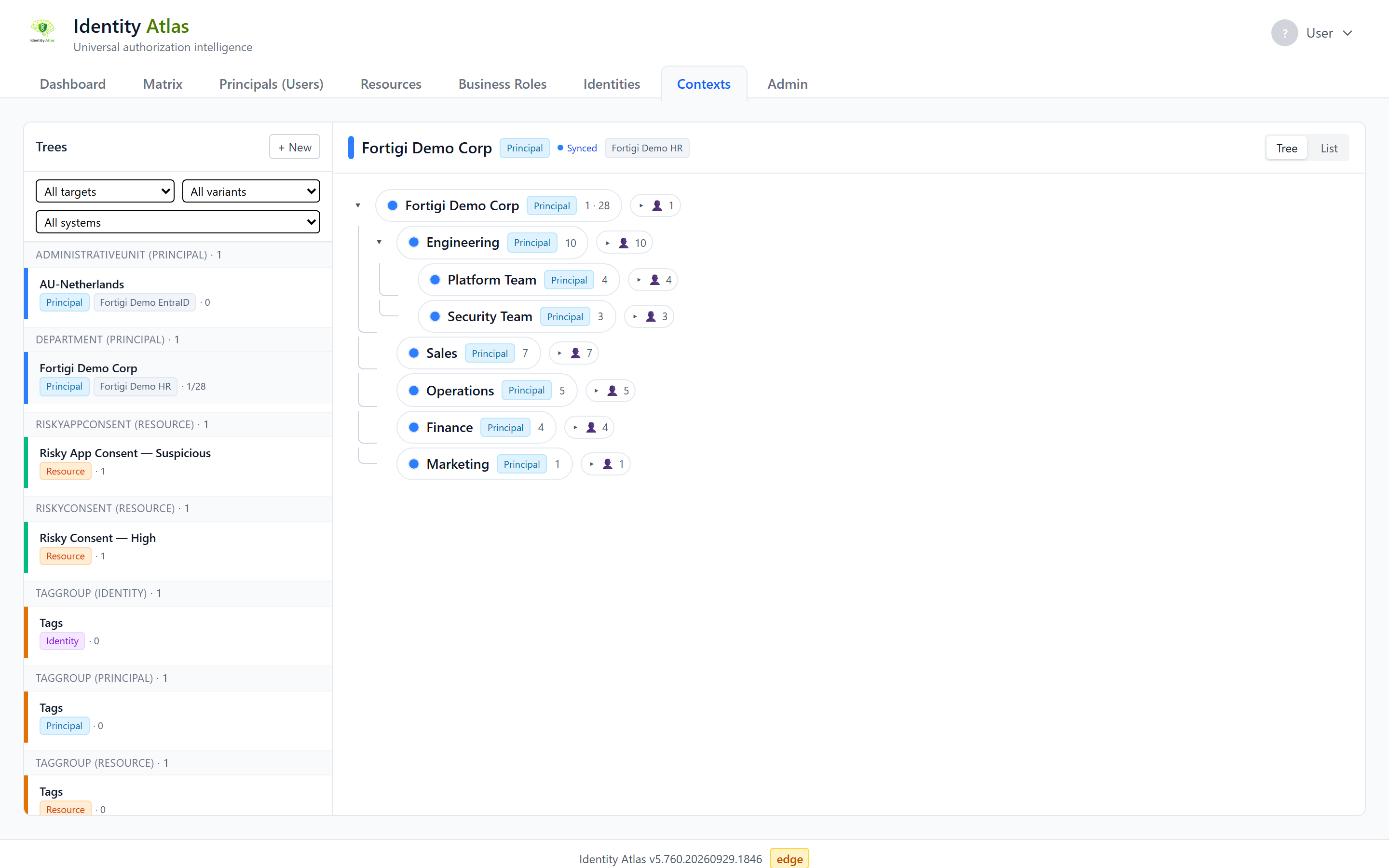
The two-pane layout
The Contexts tab is split in two:
- Left — the tree selector. Every root tree, grouped by context type. Each entry shows a colored left border for its variant, a target-type badge, and (when the tree is pinned to one system) a muted system chip. A filter bar at the top narrows the list by target type, variant, or system — handy when you have dozens of trees.
- Right — the selected tree. A header card summarizing the tree (name, variant, target type, system, owner, member count), then the tree itself. Toggle between Tree and List view with the buttons in the header.
Tree view shows the hierarchy with expand/collapse arrows. Hover a node for its direct and total member counts. Expand a node to see the members (users) directly in it.
List view flattens the same tree into a sortable, filterable table — better for very large trees (e.g. a multi-thousand-node AD OU structure) where the indented view is too dense.
Create a context
Click + New (top-right) to open the New-Context wizard. Step 1 asks where the tree should come from — the three cards match the three variants:
Import (synced)
Synced trees are not built here — they appear automatically after a crawler ingests them. This card explains that and links you to the Crawlers page to configure one. After the next crawl, the tree shows up in the selector on its own.
Run a plugin (generated)
Build a tree from data you already have. The wizard walks you through:
- Pick plugin — the registered plugins, grouped by target type.
- Configure — a form generated from the plugin's parameters (for example, which system to scope to, or which principal attribute to read).
- Preview & run — a dry run shows how many contexts and members would be created, with sample rows, before anything is written. Choose whether to create a new tree or refresh an existing one from the same plugin, then press Create tree.
The run happens in the background; you land on the run's progress page, and the finished tree appears in the selector.
The built-in plugins include:
| Plugin | Target | Builds a tree from |
|---|---|---|
| Manager Hierarchy | Principal | The manager chain — the org chart |
| Department from Principal | Principal | The department attribute |
| Active Directory OU Tree | Principal | The LDAP distinguished name (OU path) |
| Principal Type Tree | Principal | Account type (user, service principal, …) |
| Orphaned Accounts | Principal | Accounts not linked to any identity, bucketed by type |
| Resource Cluster | Resource | Name-token clustering of resources |
| Resource Type Tree | Resource | Resource type (and, for Azure, the resource plane) |
| Scope Hierarchy | Resource | The Azure management-group → subscription → resource-group nesting |
| Entra Group Category Tree | Resource | The Entra group category |
| Risky Consent | Resource | OAuth consent risk tiers and flagged app consents |
Create manual
Start an empty tree you curate yourself. Pick a target type, give it a context type (a free-form label like Application or BusinessProcess), a name and optional description, and optionally pin it to a scope system. You land on the empty root, ready to add children and members.
Run a plugin, or sync a tree
For a generated tree, the header shows a Sync button. Sync re-runs the generating plugin onto that tree so memberships update — for example, a person who changed manager moves under their new manager. Crucially, your edits are kept: manual children you grafted on and members you moved by hand survive the re-run. (The generated nodes themselves stay read-only — you can't rename or reorder them; see below.)
To create a fresh generated tree (rather than refresh an existing one), use + New → Run a plugin and choose "Create a new tree" on the preview step.
Note
Running plugins and syncing require the admin.context-plugins permission.
Edit a tree
On a manual tree — or on the manual/generated parts of any tree — you can reshape the hierarchy directly:
- Rename — double-click a node's name and type a new one.
- Add a child — use the add-child control on a node; the child inherits the parent's target type and context type.
- Drag to re-parent — drag a node onto another node to make it a child of that node. The move is validated (it keeps the target type consistent and rejects cycles) and member counts recompute on both branches.
- Delete a tree — the Delete tree… action in the header removes a root and all its descendants. Synced trees can't be deleted (they would just re-appear on the next crawl).
On a Manager Hierarchy tree there's one more move: drag a person's oval onto another team to record that they report to that team's manager. The person moves immediately, and because the change is stored as a reporting override, it sticks even after the next Sync.
Synced and generated nodes are otherwise read-only — you can graft manual children under them, but you can't rename or reorder the synced/generated nodes themselves.
Filter the Matrix by a context
Contexts earn their keep on the Matrix. In the Matrix toolbar, next to the other filters, use the Context control:
- Click + context and pick any tree or sub-tree from the picker.
- The Matrix narrows to that context's members. What gets narrowed depends on the target type:
- Identity / Principal contexts filter the rows (which people/accounts show).
- Resource / System contexts filter the columns (which resources show).
- Each filter chip has a +sub checkbox — leave it on to include the context's descendants, turn it off to match only its direct members. Remove a chip with its ×.
Add several context filters and they AND together, letting you drill to, say, "people in the Finance org unit and their access to the Procurement app's resources".
Tip
Context filters are reflected in the Matrix URL, so a filtered view is bookmarkable and shareable.